This page takes you from signing in to a referral program that records a test sale, in the dashboard, one screen at a time. Nothing here needs code until step 6, and everything you choose stays editable afterwards. If you are an AI agent helping somebody in their own browser, the dashboard, screen by screen has every screen's address.
1. Sign in
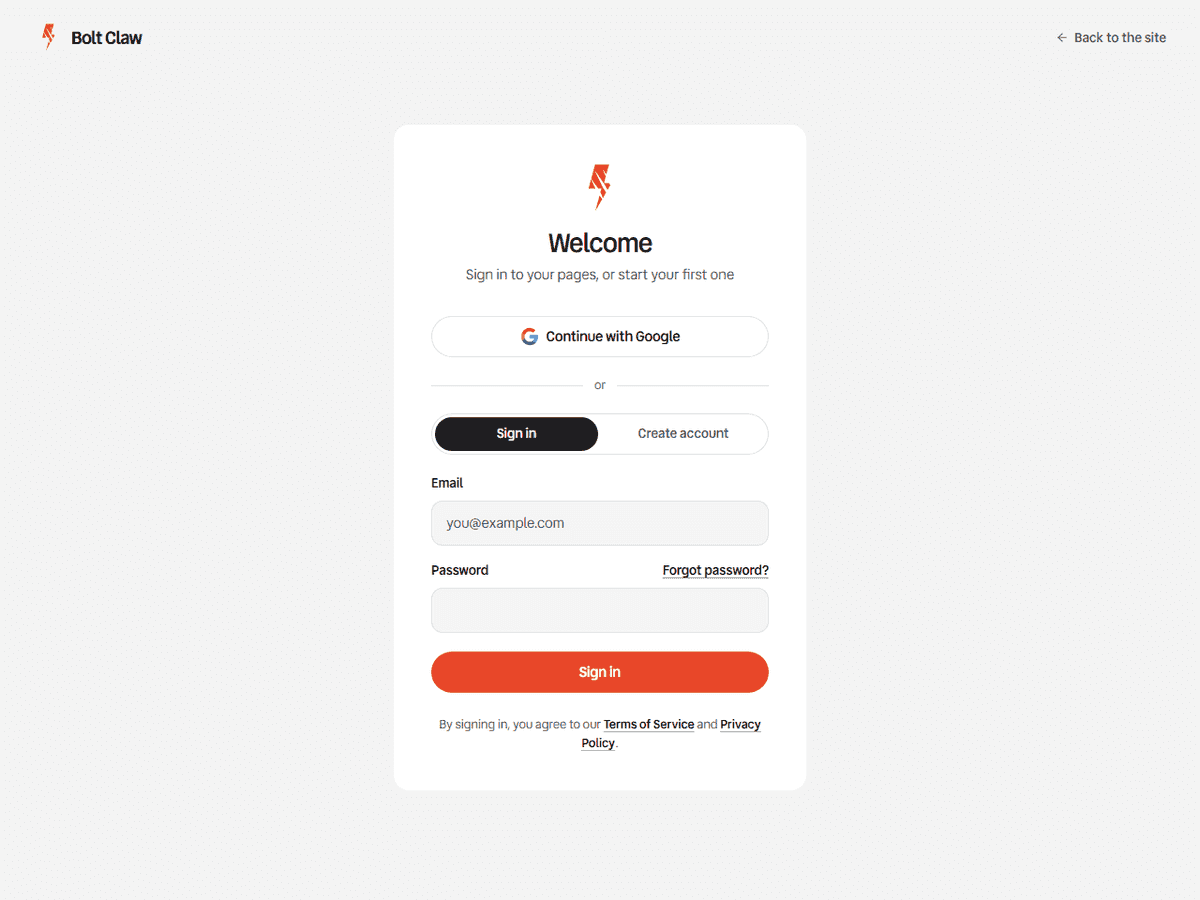
Open Sign in and continue with Google, or with an email address and a password (you confirm the address from an email first). A new account gets its own organisation straight away, where your programs, team, plan and keys live: there is nothing to set up and nothing to approve. Organisations and the API's workspace says what that means for keys.
2. Open Programs and press New program
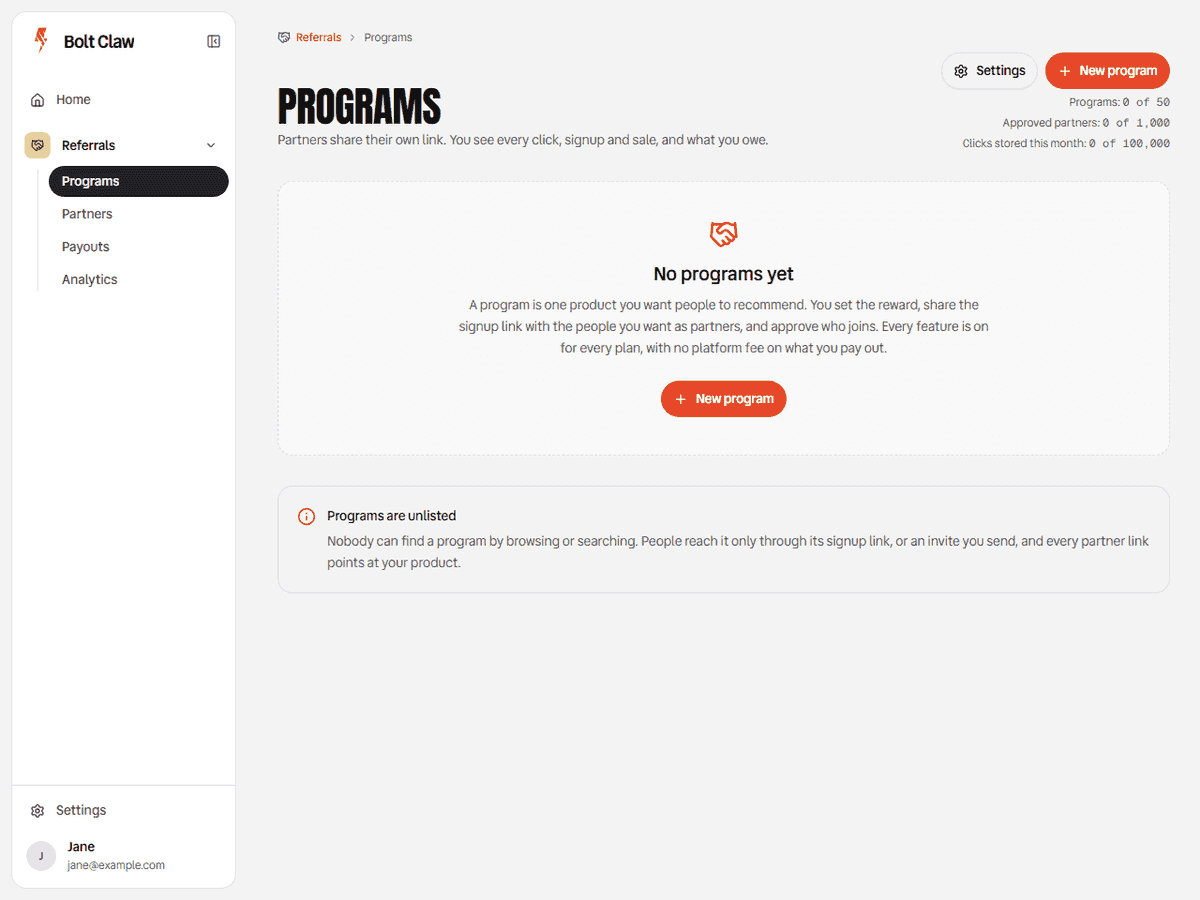
In the sidebar, open Referrals, then Programs (Referrals, Programs). Press New program at the top right. The meters beside it show your plan's programs, approved partners and clicks.
3. Pick the kind of program
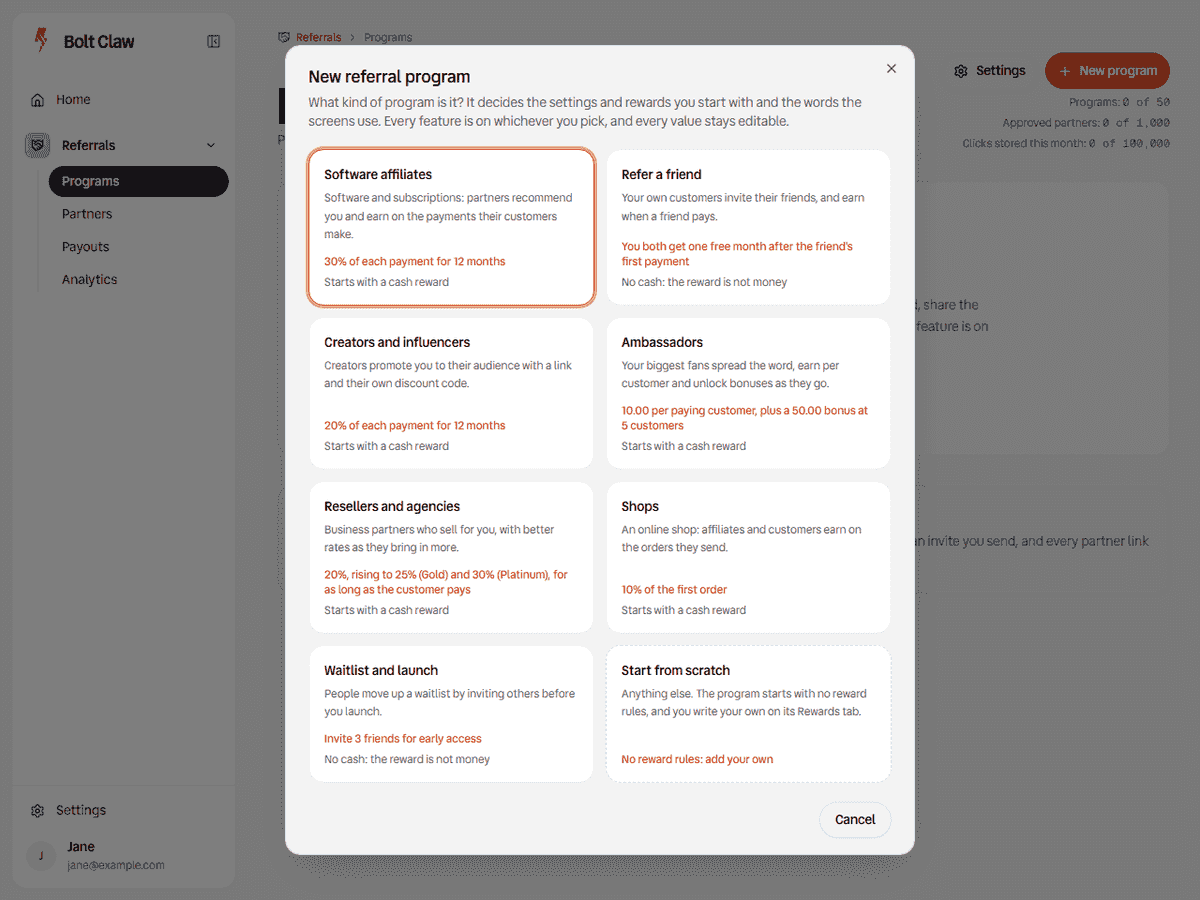
The kind decides the reward rules and settings the program starts with, and the word the screens use for the people who share it. Every feature is on whichever you pick, and each card says whether its starting reward is cash.
| If you are | Pick | It starts with |
|---|---|---|
| A product whose own users invite friends from inside it | Refer a friend | One free month each after the friend's first payment, no cash |
| Software with partners and affiliates who earn on payments | Software affiliates | 30% for 12 months |
| Working with creators who share a link and a code | Creators and influencers | 20% for 12 months, codes |
| Rewarding fans who unlock bonuses | Ambassadors | A flat reward and a bonus |
| Working with resellers and agencies | Resellers and agencies | Three levels |
| An online shop | Shops | 10% of the first order |
| Launching, with a waitlist people move up | Waitlist and launch | Early access by friends |
| Anything else | Start from scratch | No reward rules: you add your own |
The links open what each kind sets, generated from the templates themselves. With Refer a friend, your own users are referrers: you can try one in test mode without touching live data (a test referrer). Before Create program, Refer a friend asks one more question: When does the friend get their month? After their first payment (the default) gives nothing until a payment clears the hold, takes it back on a refund and lets every fraud check apply. At checkout, as a discount is free product before any payment, which Bolt Claw can only check if your checkout asks first; see at checkout or after a payment.
4. Two questions, then the name, the product link and the currency
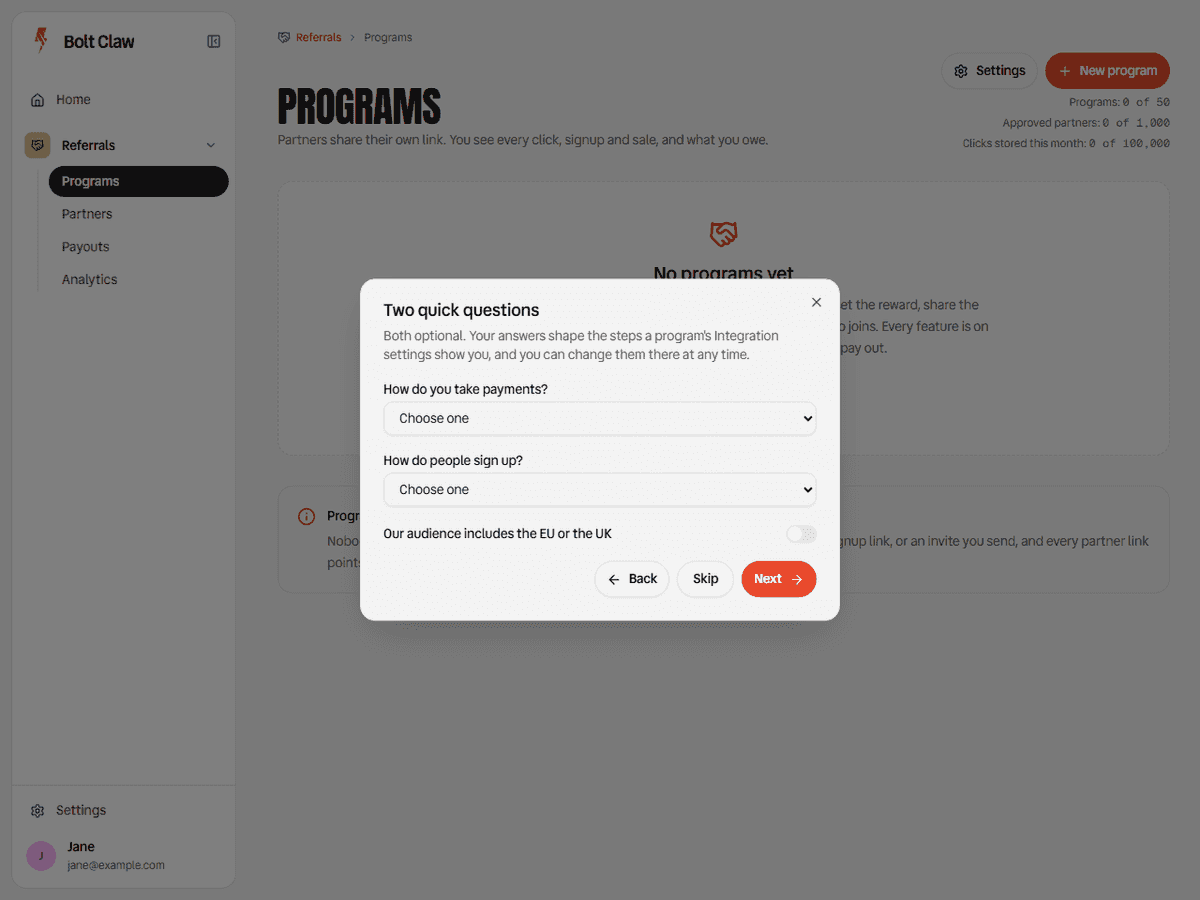
Two optional questions come next: how you take payments and how people sign up. Your answers only shape the setup steps the program shows you, and you can skip them or change them later.
Then give the program a name, the product link a partner's link sends people to (it must start with https://), and the currency rewards and payouts are in. The box at the bottom lists the rules and settings it starts with. Press Create program.
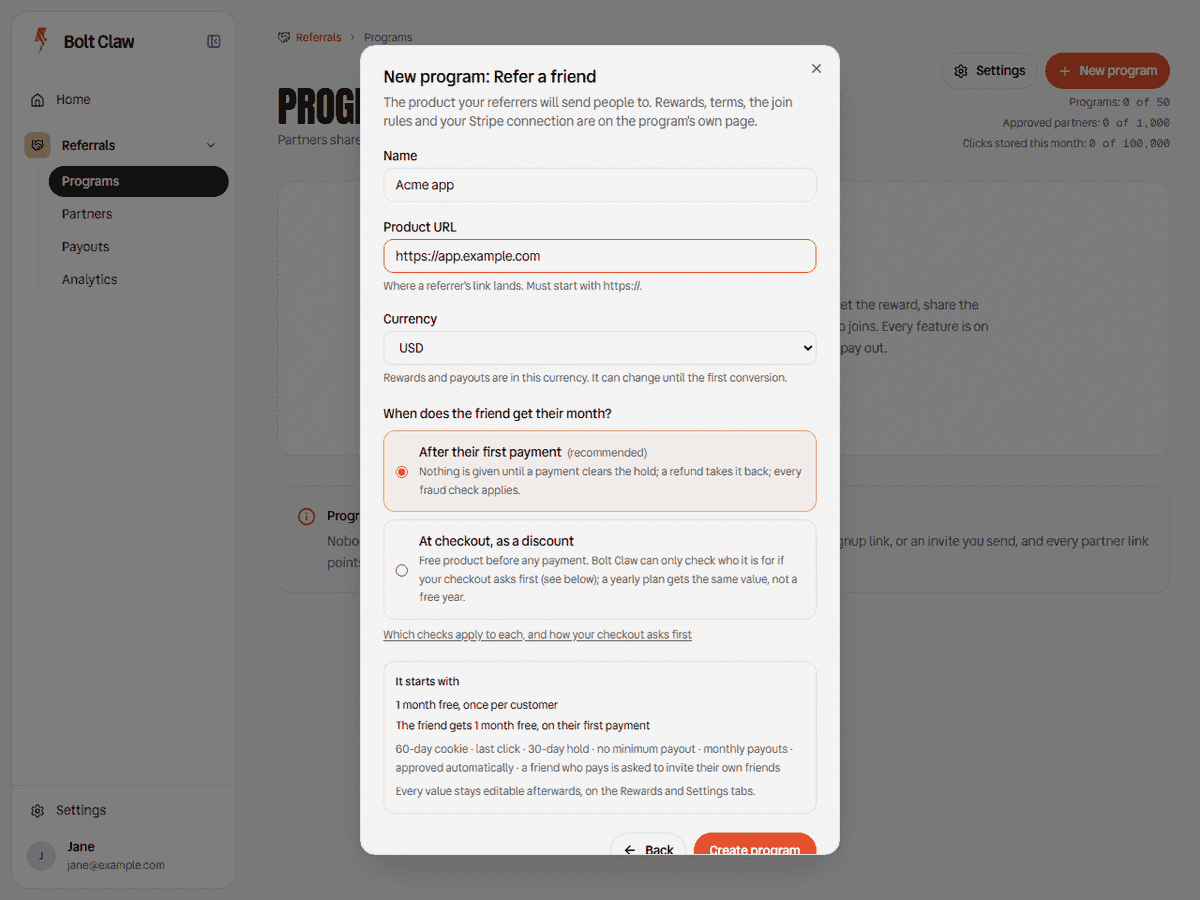
5. The program's page
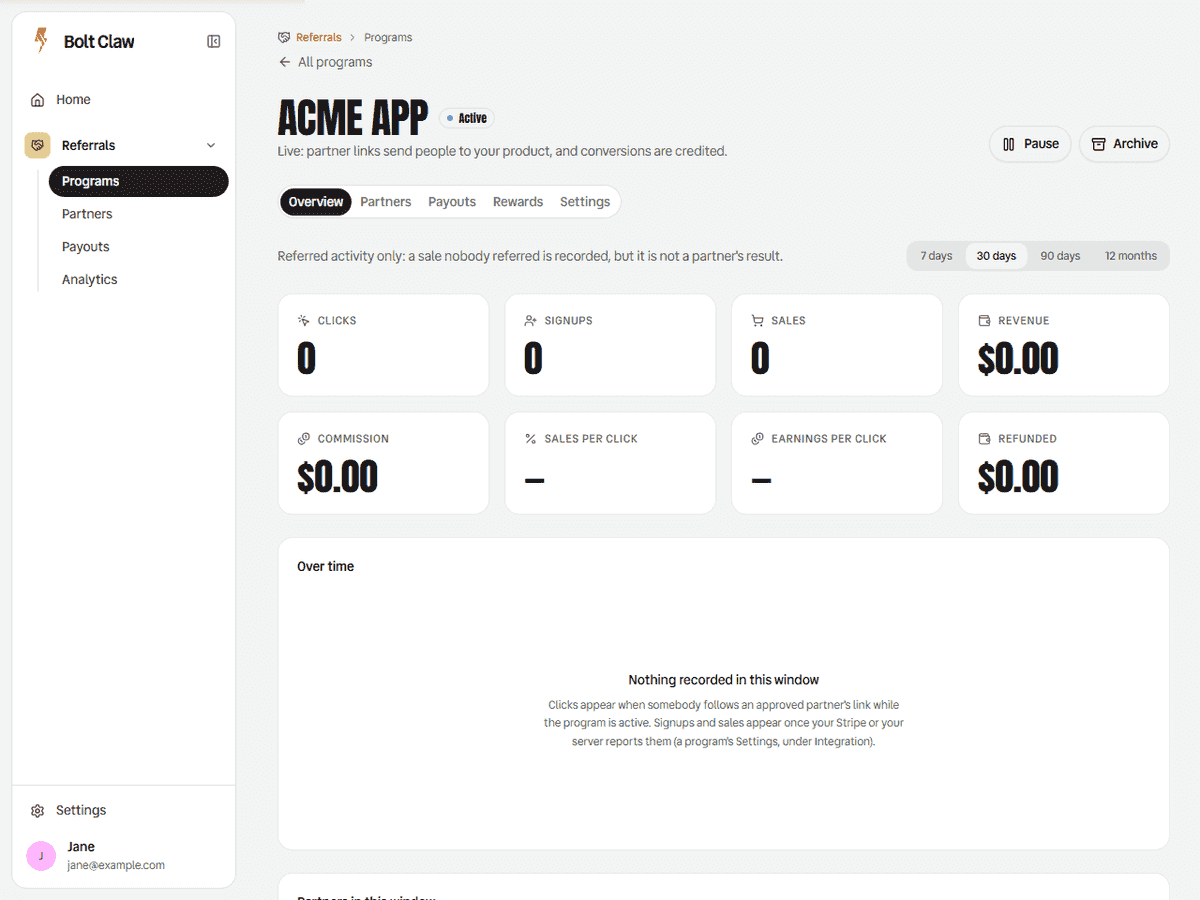
The program opens on its own page, with five tabs:
- Overview: clicks, signups, sales and what you owe, and the review queue.
- Partners: who joined and who is waiting; for Refer a friend, your referrers too.
- Payouts: commissions, what is ready to pay, payouts and grants.
- Rewards: the reward rules, groups and levels, and what a friend is told.
- Settings: the program itself, and Integration, where the setup is.
To come back to any of them later, open the program from Programs, or follow Settings, Integration: with one program it opens that program's Integration section, with several it asks which.
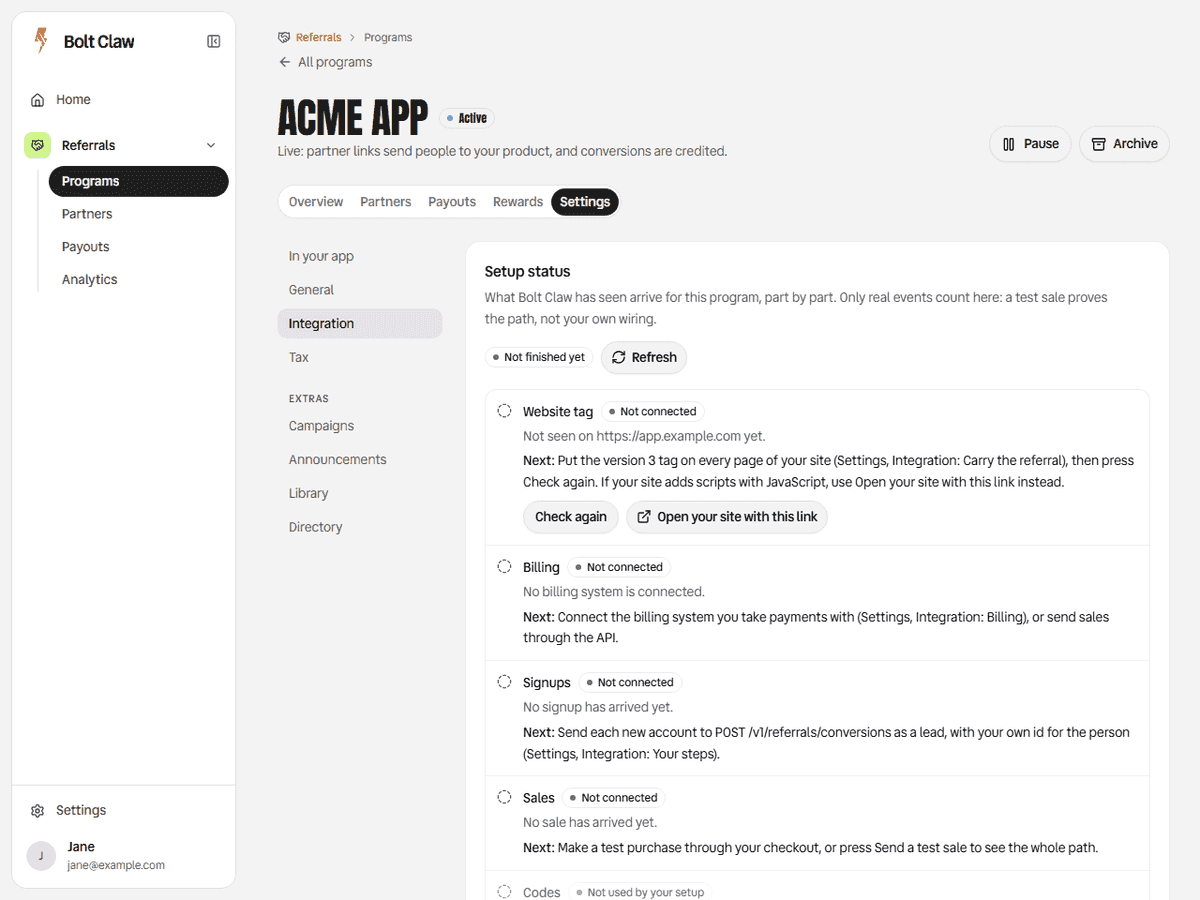
Open Settings, Integration. The setup status at the top has a row for each part (the website tag, billing, signups, sales), each saying what is missing and how to fix it. Below it, pick the billing system you take payments with: each card says what to paste where. Connecting billing has every system.
6. A key for your server, limited to this program
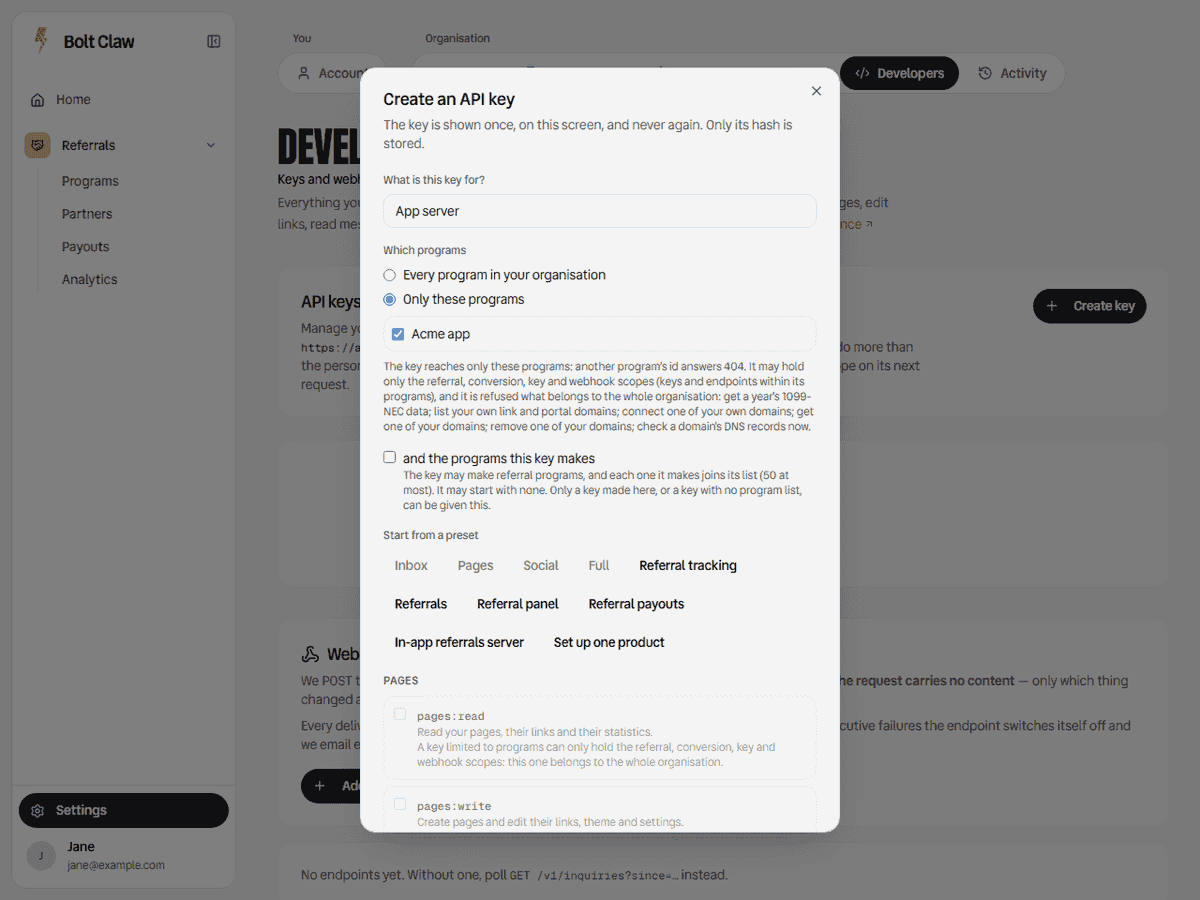
If your own server reports signups and sales, or shows your users their referral panel, it needs an API key. Open Settings, Developers, Create key (that link ticks the In-app referrals server preset), name the key, and under Which programs pick this program only, so the key can neither read nor change any other program (Limit a key to some programs). What each part of an integration needs says which preset fits which job. The key is shown once: store it on your server.
Then, back on Settings, Integration, press Send a test sale. It runs the whole path with test data: a click, a signup, a sale and a commission you can see, none of it counted, paid or emailed. For a Refer a friend program, also make a test referrer and send a test sale with their code (Your own users, in test mode).
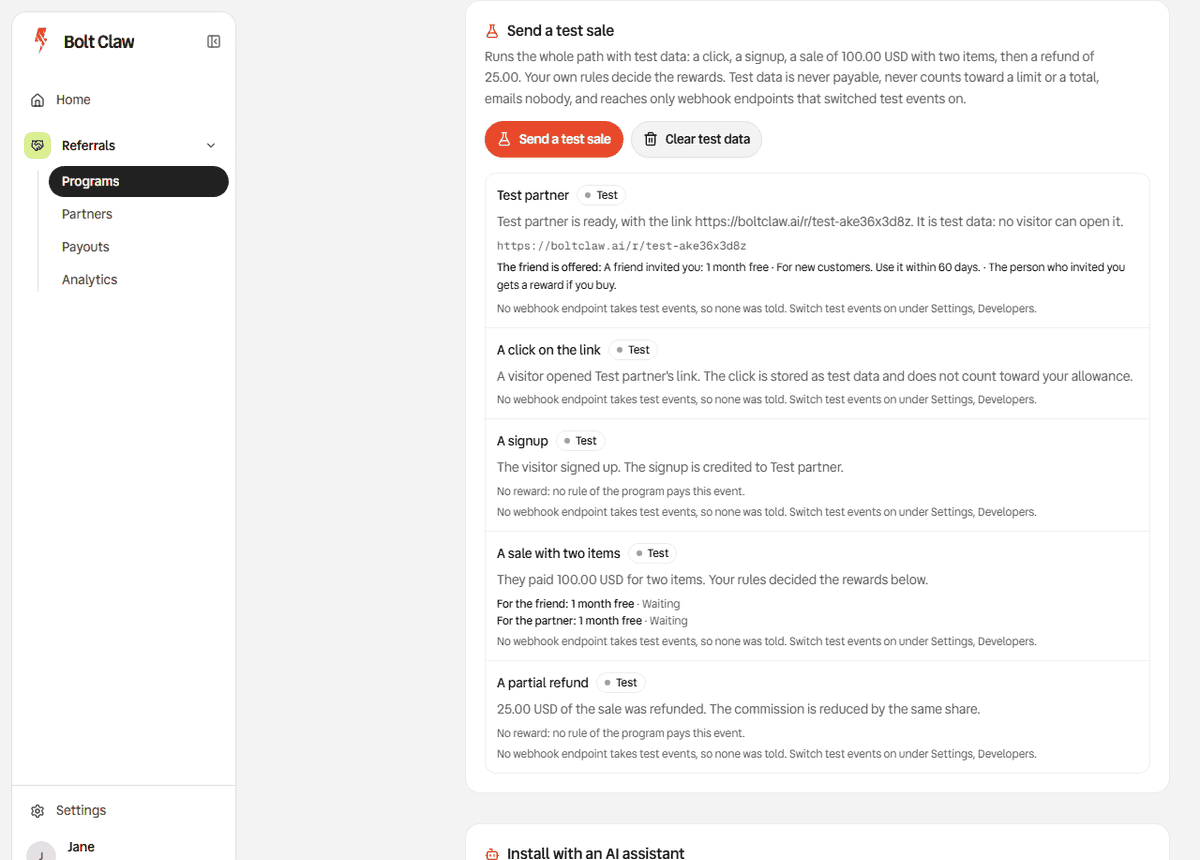
Live means real events from your billing system or your server, without
test. Test data never counts toward a payout, a limit or a report, and
Clear test data deletes it (Test data).
7. Where to go next
- The quickstart for your stack: Next.js, Supabase, Express and the rest under "Referrals: your stack".
- The referral panel, to show your own users their link inside your product.
- The friend's welcome: what a friend who arrives through a link is told.
- Rewards that are not cash: credit, free months and perks.
- Safeguards and timing: what Bolt Claw guards by itself, and every hold and window with the value to choose, also on the program's Settings, Timing section.
- Limit a webhook endpoint to some programs, so one product's system hears only its own program's events.
- Organisations and the API's workspace, for two products: two programs, each with its own key.